
IntelliFrames
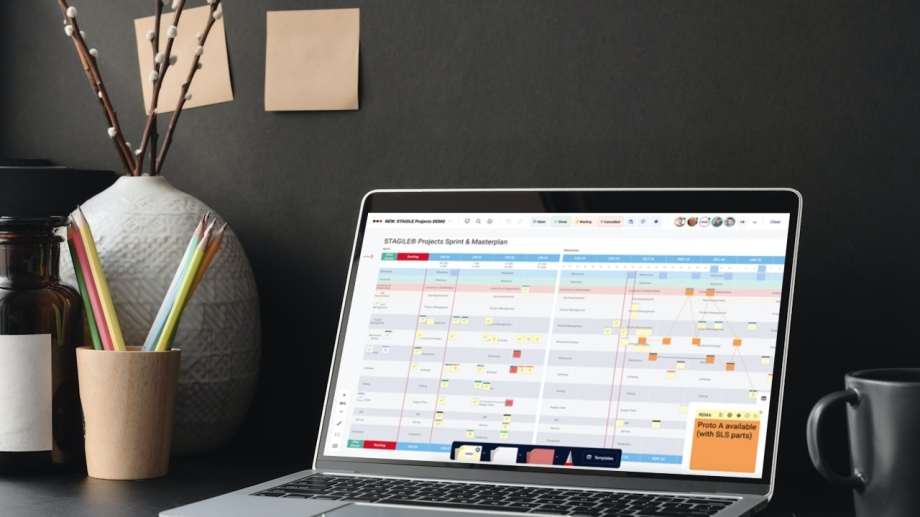
Our IntelliFrames are special templates which – as the name suggests – are equipped with special “intelligence”. All IntelliFrames can be found in a separate IntelliFrame Library in the Template toolbar, which we will be continously growing in the future.
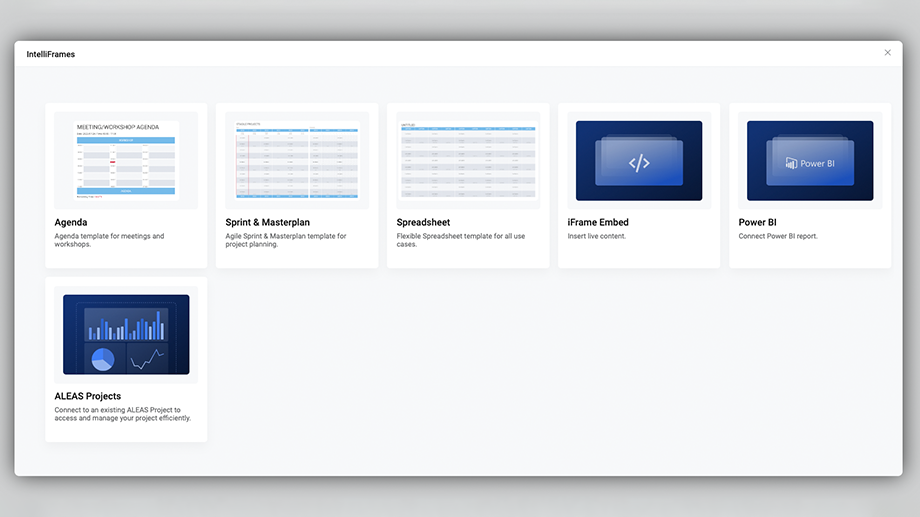
There are currently the following IntelliFrames available in the IntelliFrame library:
- Sprint & Masterplan: IntelliFrame for agile project planning
- Spreadsheet: IntelliFrame for basic tables
- Agenda: IntelliFrame for meeting and workshop agendas
- Work Radar: Display sticky notes from multiple Sprint & Masterplan in a single, time-based overview
- Jira IntelliFrame: Organize Jira issues as sticky notes in a clear grid view
- iFrame Embed: IntelliFrame for embedding spreadsheets and websites
- Power BI: IntelliFrame for embedding Power BI charts
- ALEAS Projects: Can be activated for companies that use ALEAS Projects
You can create a new IntelliFrame by opening up the selected template in the IntelliFrame Library, adjusting the parameters and placing the new frame on the board. Depending on the IntelliFrame selected there will be different settings availabe.
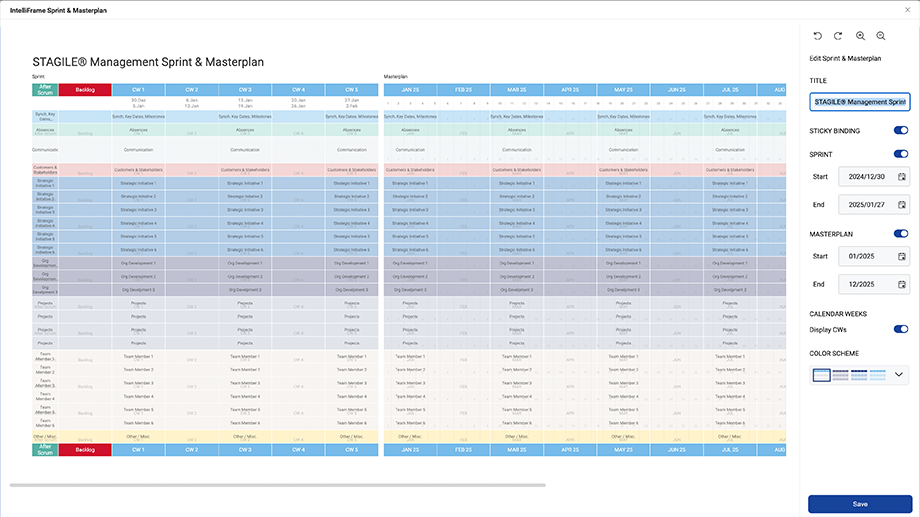
The Sprint & Masterplan IntelliFrame was developed based on the STAGILE® framework and is ideal for agile hybrid project planning.
- Users can easily customize the time frame (weeks in Sprint and months in Masterplan), add swimlanes or custom columns, define the size of each row and column individually, enable or disable calendar weeks, change the color scheme, etc.
- The current week is automatically highlighted, so everyone knows which stickies are relevant during the Scrum Meeting.
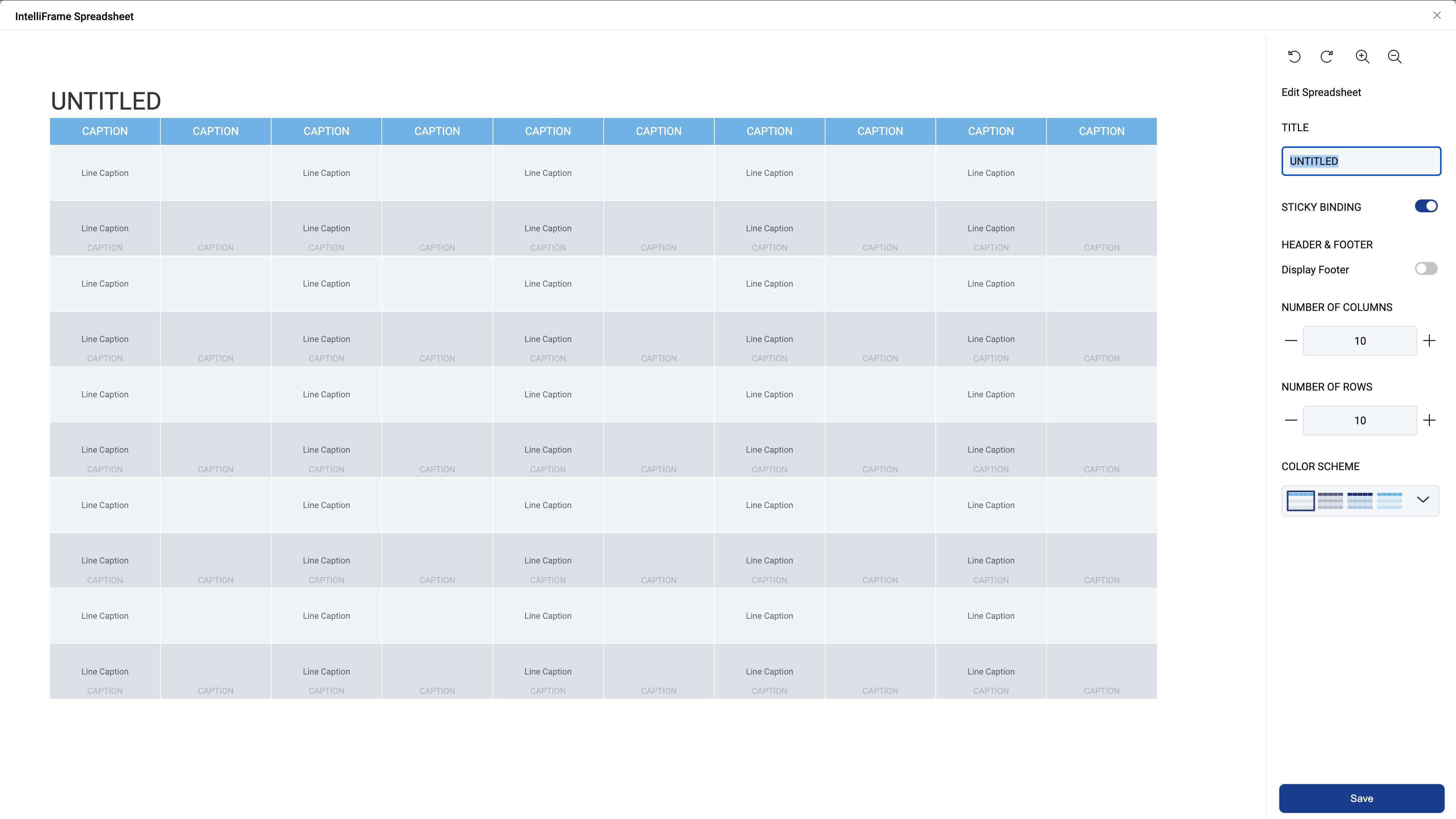
The Spreadsheet IntelliFrame is an absolute allrounder, which can be adapted for all kinds of use cases, be it a Kanban board, budget planning, project management or other tasks.
The available parameters include:
- title
- footer (optional)
- number of columns
- number of rows
- color scheme
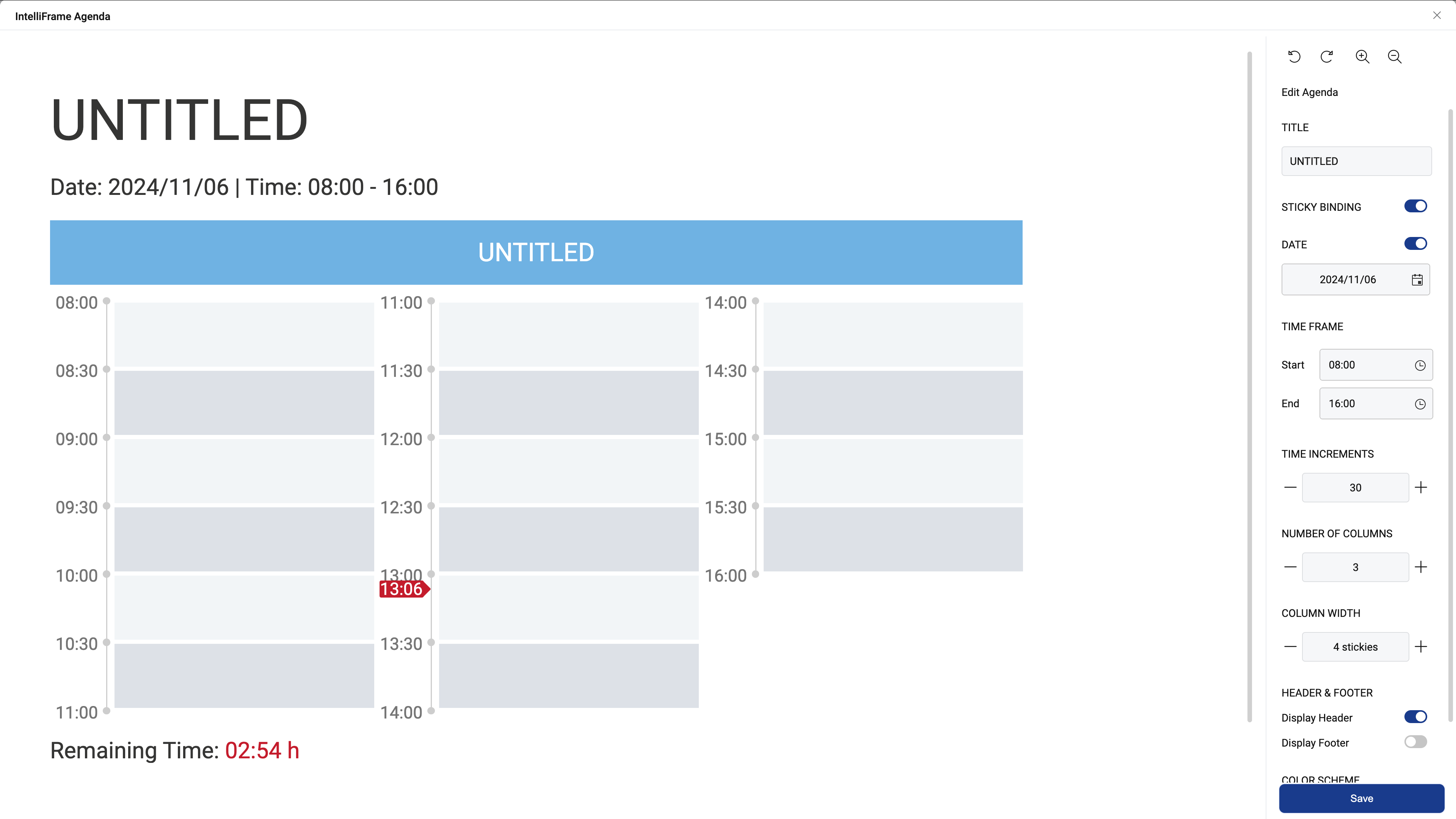
Agenda templates are needed for almost every meeting or workshop and take a lot of time to customize using traditional tools. With our new Agenda IntelliFrame (which you can find in the Intelli- Frame Library) you can create a new agenda in a very short amount of time.
The available parameters include:
- title
- date (optional)
- time frame (start and end time)
- time increments (between 5 and 60 minutes) – number of columns
- column width
- header and/or footer (optional)
- color scheme
A time indicator will automatically be displayed for all agendas. The time will correspond to your time zone settings.
Shift Agenda:
A special feature allows you to shift the time frame of your Agenda IntelliFrame with just a few clicks. Activate the template mode and right-click on the agenda template, then select “Shift Agenda” in the context menu. A new window will open where you can change the time frame based on the current time increments. The start and end time will adapt automatically.
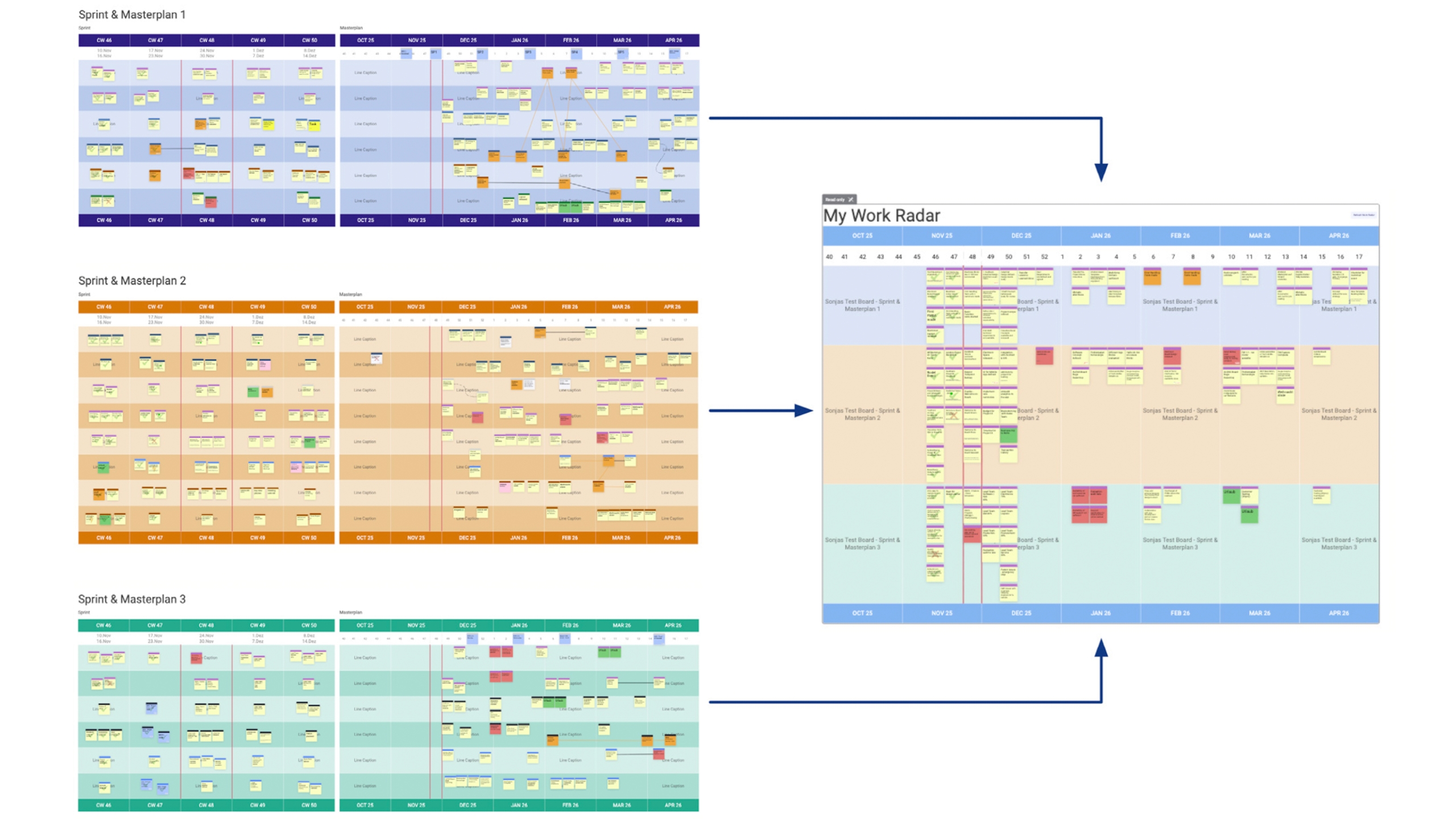
Work Radar is an IntelliFrame that brings together sticky notes from multiple Sprint & Masterplans
into one clean, time-based view. Work Radar gives you an instant overview of which deliverables have priority, who’s involved, and what’s on the horizon, without jumping between boards.
- Cross-board overview: View all stickies from selected Sprint & Masterplan IntelliFrames across
multiple boards in a single timeline – each displayed in its own row. - User focus: Select one or several users to include all the stickies where they’re the Sticky Owner or a
Supporter. - Smart placement: Stickies are automatically positioned in the correct calendar week based on their
original location in the source template – no manual rearranging required. - Quick access: While stickies can’t yet be edited directly in Work Radar (this will be available in the
next release), a simple right-click takes you straight to the original board.
Please note:
- In Work Radar, stickies are displayed based on their position in the Sprint & Masterplan.
- The top-right corner of the sticky serves as the reference point. If the sticky’s right edge extends beyond the
dividing line, it will appear in the following calendar week. - Sticky Binding must be enabled.
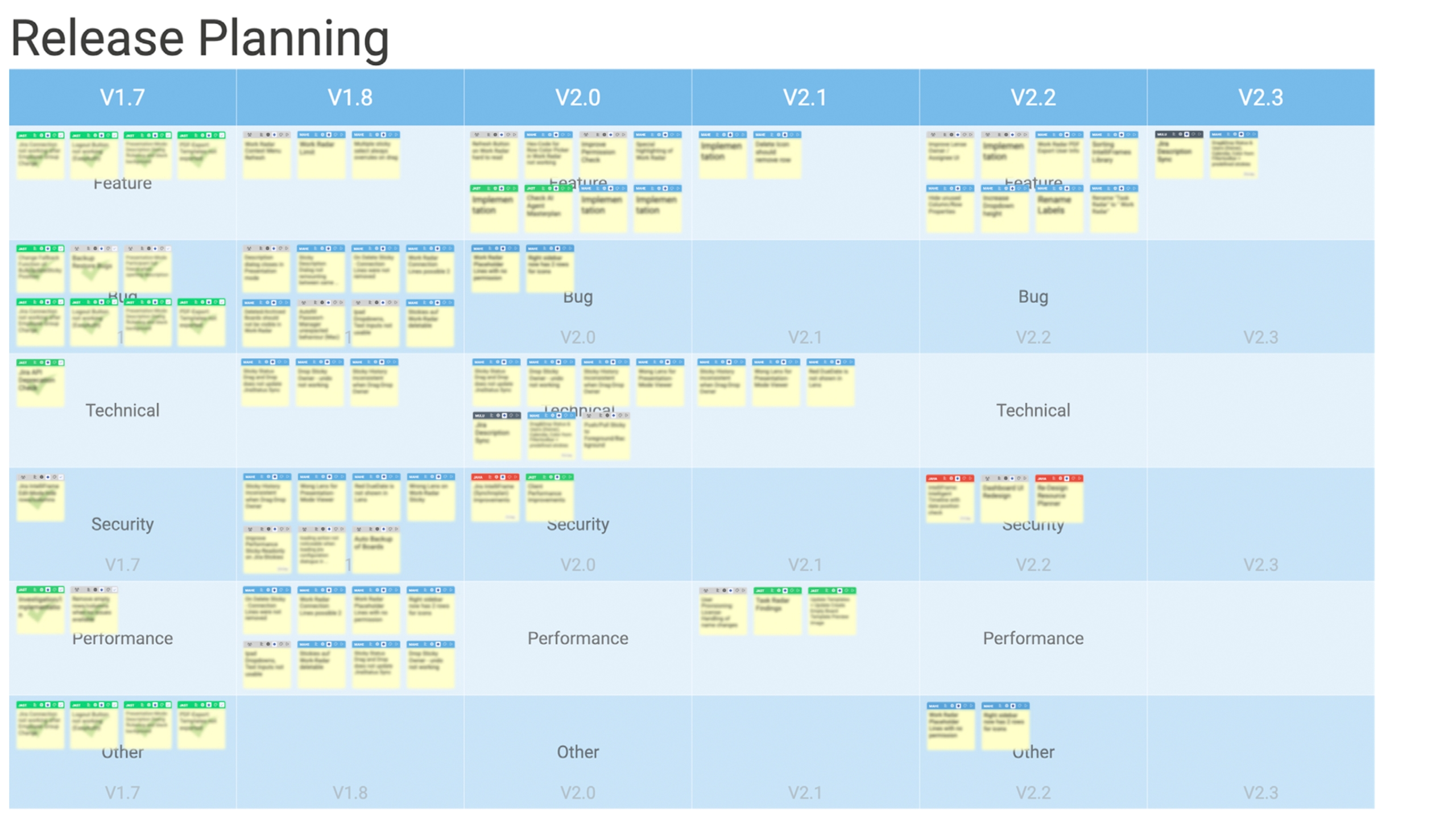
The Jira IntelliFrame transforms your Jira issues into a clear, structured overview. If Jira Sync is activated
for your board, you can simply select a Jira project, choose which properties to display as columns and
rows, and optionally use a JQL filter to narrow the focus. Once added to the board, all issues appear as sticky notes, automatically arranged in your defined layout. Changes made on the board are synced directly with Jira – and vice versa.
- Better overview: Visualize your Jira issues in a clean, structured grid that makes relationships, priori-
ties, and progress immediately clear. - Full flexibility: Choose any Jira fields to define columns and rows – such as Responsible, Component,
Status, Priority, or Issue Type. - Focused insight: Use a JQL filter to display only the issues that matter most to your current planning
or review. - HotSync: Seamless, real-time synchronization between ALEAS Board and Jira.
- Seamless collaboration: Give your team a shared visual overview that helps align discussions, spot
dependencies, and plan ahead efficiently.
With the Jira IntelliFrame, you can finally bridge the gap between your Jira data and your visual planning
flow – turning complex issue lists into a structured, at-a-glance overview that moves with your team.
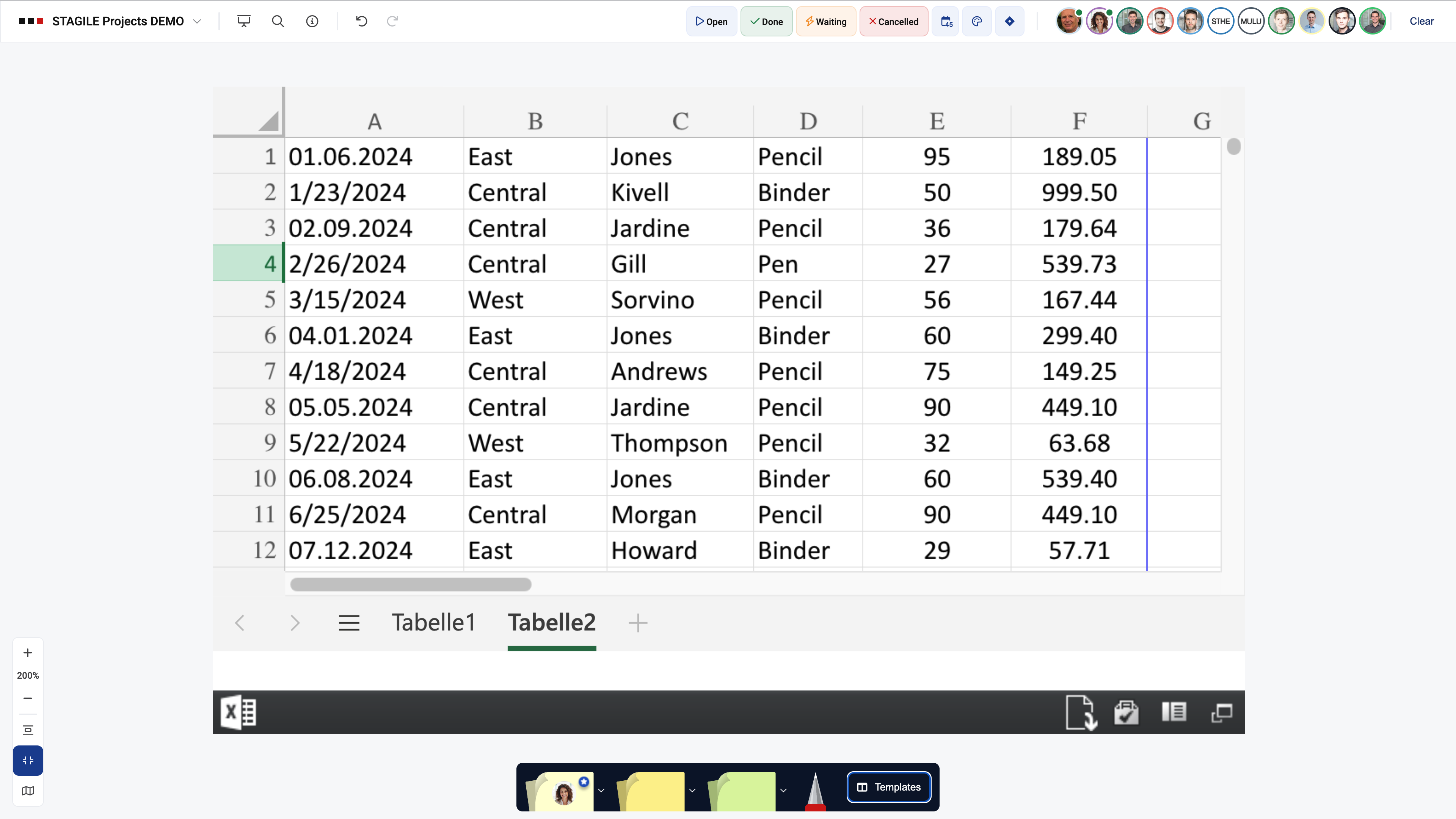
You can embed websites or Microsoft files (Word, PowerPoint, Excel) directly into the board using iFrames, making external resources easy to access. Any changes are shown in real time. Please note that Word, Excel, and PowerPoint files can only be embedded using the Microsoft 365 online apps. To do this, go to File → Share and select the “Embed” option.
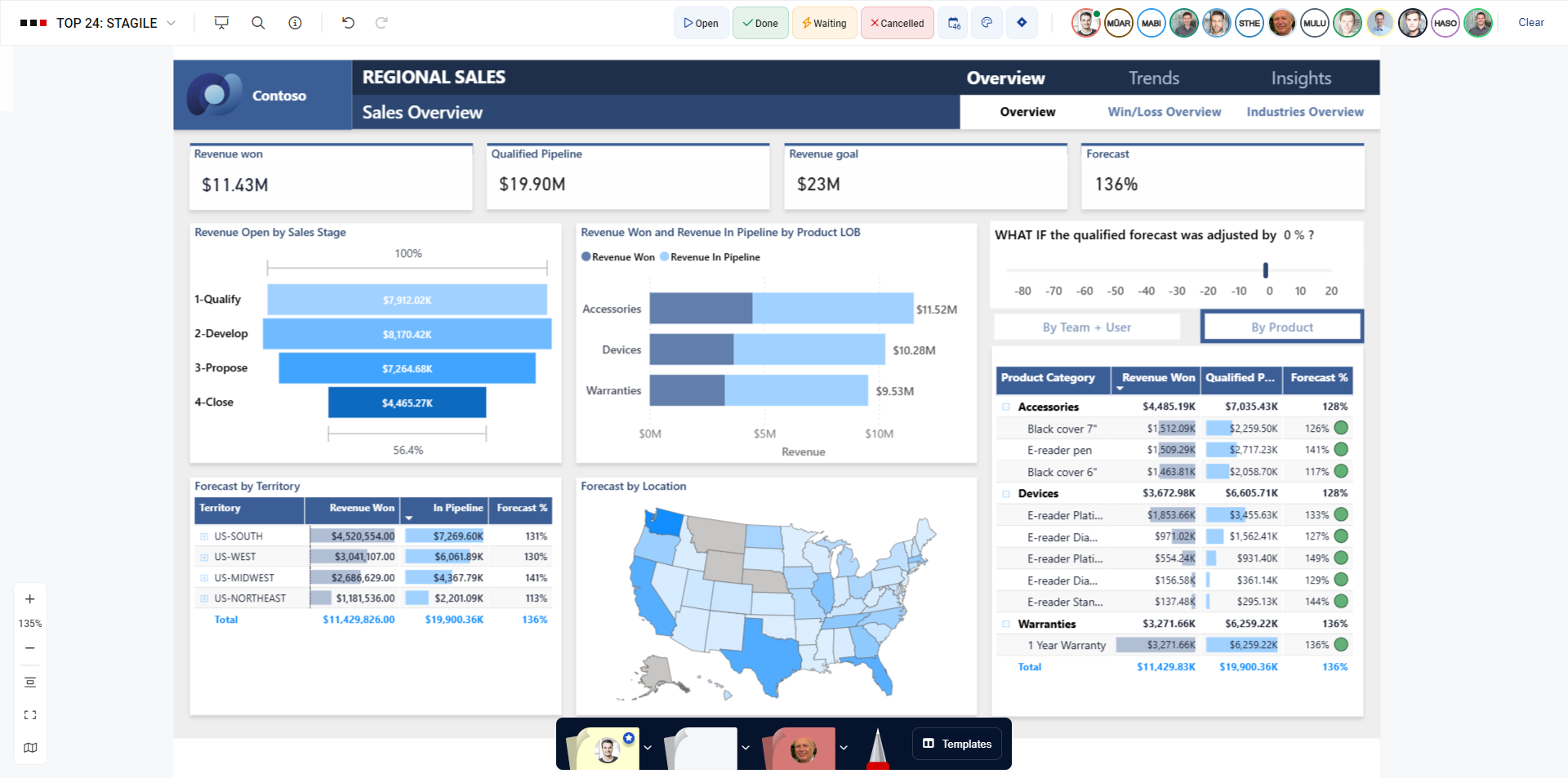
You can now embed live previews of Power BI charts directly into your board. The charts update in real time, so you always have the latest data at your fingertips. Admin and IT approval within your organization might be required for integrating Power BI.
- “Sticky Binding” is a feature, which will make your project planning more flexible and time-efficient.
- You can active or de-activate “Sticky Binding” for every Sprint & Masterplan. Once activated, all the stickies you place on the template will be anchored to their current position and will stay within the same table cell whenever you add or move a row or column.
- A red chevron in the top right corner of a sticky indicates that “Sticky Binding” has been activated for the template the sticky is placed on. The sticky is anchored to the table cell on which the top right corner of the sticky is positioned.